
Скачать macOS Ventura – бесплатное обновление macOS, повышение продуктивности, безопасное обновление
Обзор macOS Ventura
macOS Ventura — 19‑е крупное обновление операционной системы Apple для компьютеров Macintosh, выпускаемое как бесплатное обновление, ориентированное как на производительность, так и на продуктивность. Анонсировано на WWDC 2022 и позиционируется как наследник macOS Monterey, Ventura приносит свежий визуальный язык, более тесную интеграцию с нативными приложениями и набор улучшений, направленных на упрощение повседневных рабочих процессов. Обновление особенно актуально для удалённых и гибридных сотрудников, студентов и креативных профессионалов, которым нужны быстрые, отзывчивые инструменты в движении.
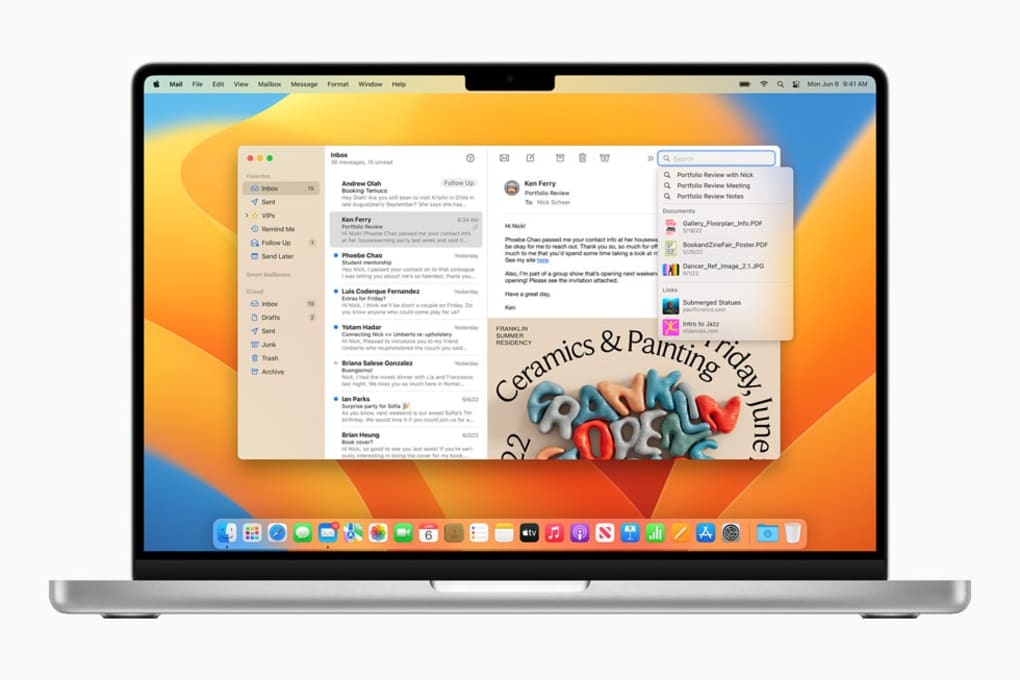
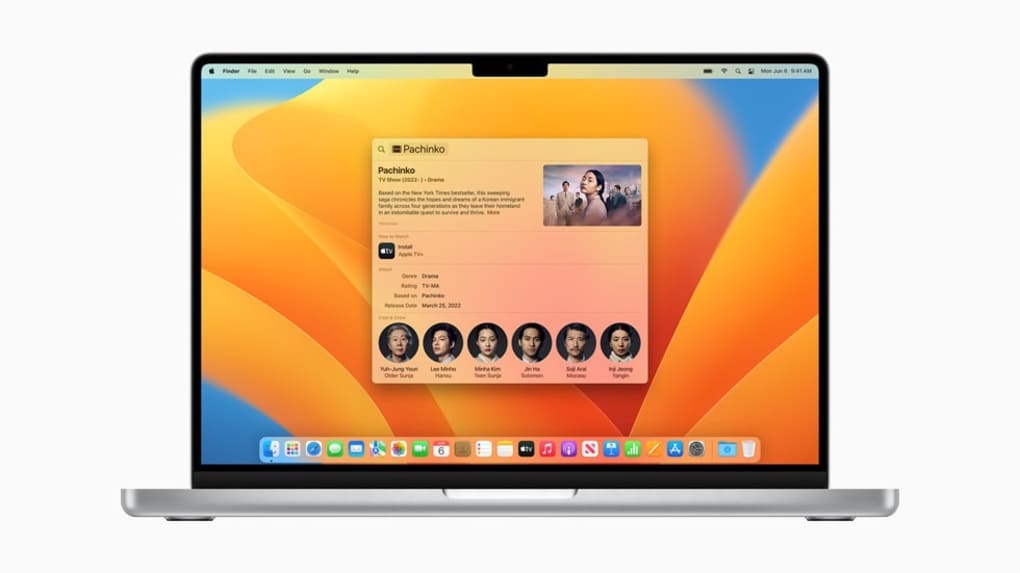
Хотя публичный релиз ожидается позже в этом году, разработчики уже могут исследовать Ventura через macOS Developer Beta Access Utility. Эта бета‑программа позволяет ранним пользователям тестировать новые функции, сообщать об ошибках и помогать формировать окончательную полировку перед коммерческим выпуском. Бета‑версия не является готовой к продакшну — пользователи должны ожидать случайные сбои, странности интерфейса и необходимость нескольких перезагрузок во время установки. Тем не менее, предварительный просмотр даёт чёткое представление о направлении, которое выбирает Apple: более быстрый поиск Spotlight, обновлённое приложение Mail, живые активности в строке меню и совершенно новый интерфейс System Settings, отражающий iOS.
Ventura также отмечает поворотный момент в поддержке оборудования. Apple отказалась от совместимости с несколькими более старыми Mac, сосредоточившись на устройствах, выпущенных с 2017 года. Это решение позволяет ОС использовать современный силикон, более быстрые SSD и новые графические конвейеры, но также означает, что пользователи со старым железом должны оставаться на Monterey или более ранних версиях. Для поддерживаемых Mac — таких как iMac 2017 года, MacBook Air 2018 года или любой компьютер на Apple Silicon — обновление обещает более плавные анимации, сниженную задержку в нативных приложениях и лучшую эффективность батареи.
Безопасность — ещё один краеугольный камень Ventura. Обновление включает улучшенные проверки Gatekeeper, более строгую изоляцию сервисов XPC и улучшенный контроль конфиденциальности для местоположения, микрофона и камеры. Apple также вводит механизм «Rapid Security Response», позволяющий быстро распространять критические патчи без полной переустановки ОС, защищая устройства от новых угроз. В сочетании с бесплатной ценой Ventura предлагает убедительную причину оставаться в актуальном состоянии, при условии, что ваш Mac соответствует минимальным системным требованиям.
Ключевые функции macOS Ventura
- Stage Manager: Новый инструмент управления окнами, автоматически размещающий открытые приложения в чистой, перетаскиваемой боковой панели, помогая пользователям сохранять фокус при многозадачности.
- Continuity Camera: Превращает ваш iPhone в высококачественную веб‑камеру для Mac, поддерживая Desk View, Center Stage и портретный режим.
- Spotlight Enhancements: Более богатые результаты поиска с предварительным просмотром, большими иконками и возможностью запускать веб‑ярлыки прямо из строки поиска.
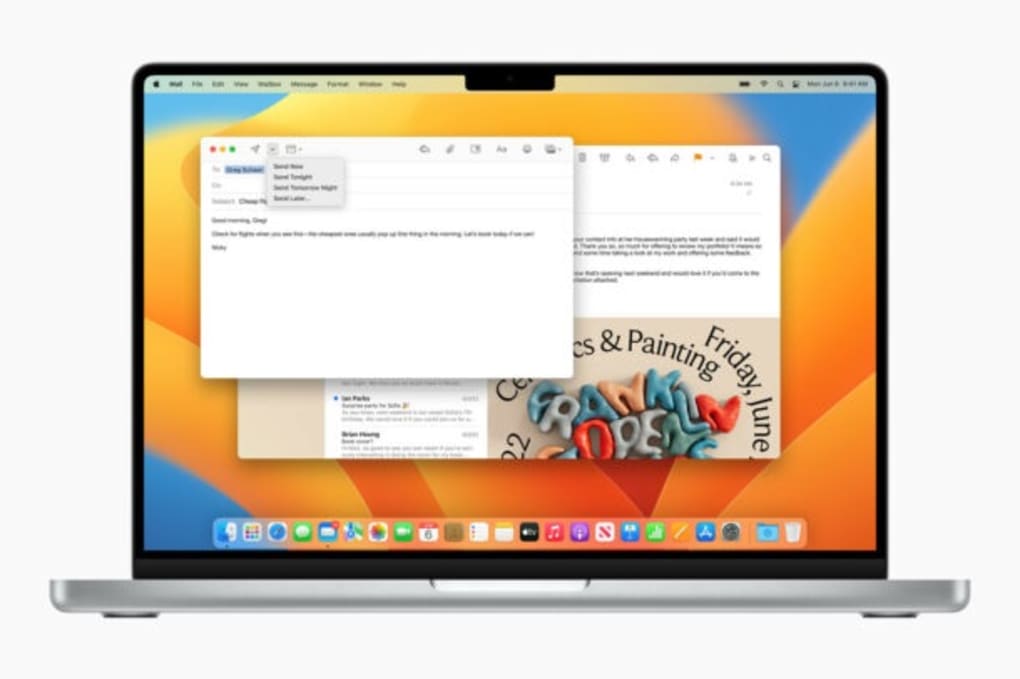
- Mail Revamp: Улучшенный поиск, отмена отправки, планирование отправки и предложения последующих действий на основе ИИ‑анализа вашего почтового ящика.
- System Settings Redesign: Панель настроек в стиле iOS, группирующая связанные параметры, что ускоряет поиск настроек конфиденциальности и сети.
- Live Activities: Обновления в реальном времени из приложений (например, спортивные результаты или статус доставки) появляются в строке меню без открытия полного приложения.
- Enhanced Security: Rapid Security Response, улучшенный Gatekeeper и более детальные переключатели конфиденциальности для микрофона, камеры и местоположения.
- Freeform (Beta): Совместная доска, позволяющая командам рисовать, аннотировать и генерировать идеи вместе на разных устройствах.
- Improved Safari: Быстрее загрузка страниц, встроенный перевод и более сильные меры против отслеживания.
- Weather & Clock Widgets: Новые виджеты по умолчанию, которые бесшовно интегрируются с Центром уведомлений для мгновенного доступа к информации.
Помимо основных функций, Ventura уточняет множество внутренних компонентов. Ядро получает патчи производительности, снижающие задержку пробуждения, особенно на Mac с Apple Silicon. Фоновые процессы, такие как Time Machine и Software Update, теперь работают с более низким приоритетом, освобождая процессорные ресурсы для активных задач. Разработчики получают обновлённые API SwiftUI, позволяющие создавать более богатый UI с меньшим объёмом кода. Для продвинутых пользователей Terminal получает нативную поддержку новых тем подсказок в стиле Zsh, а стандартный шелл остаётся Zsh, но с добавленным автодополнением системных команд.
Ventura также вводит более тесную связь между iPadOS и macOS через улучшения Universal Control. Пользователи могут перетаскивать файлы между Mac и iPad без дополнительной настройки. Эта непрерывность расширяется на AirPlay to Mac, позволяя зеркалировать экран iPhone или iPad напрямую на дисплей Mac, функция, ранее требовавшая отдельный Apple TV.
Все эти обновления упакованы в единый бесплатный загрузочный файл из Mac App Store. Apple продолжает традицию предоставлять крупные обновления ОС бесплатно, стимулируя пользователей оставаться в актуальном состоянии с последними патчами безопасности и улучшениями производительности. Бесплатный характер Ventura в сочетании с акцентом на инструменты продуктивности делает его привлекательным как для личного, так и для корпоративного использования.
Руководство по установке и использованию macOS Ventura
Прежде чем приступить к загрузке, важно создать резервную копию данных. Используйте Time Machine или стороннее решение для резервного копирования, чтобы создать полный снимок текущей системы. Эта предосторожность защитит вас от неожиданных проблем, которые могут возникнуть во время обновления.
Пошаговая установка
- Check Compatibility: Verify that your Mac model appears on Apple’s supported‑device list (e.g., 2017 iMac, 2018 MacBook Air, M1‑based Macs). Open About This Mac → System Report → Hardware Overview to confirm the model year.
- Enroll in the Beta (Optional): If you want early access, download the macOS Developer Beta Access Utility from the Apple Developer portal. Sign in with your Apple ID, agree to the terms, and enable the Ventura beta channel.
- Download the Installer: Open the System Settings app, navigate to General → Software Update, and click Upgrade Now. For the beta, the update appears as “macOS Ventura Beta 1”. The download size is roughly 12 GB, so a stable Wi‑Fi connection is recommended.
- Run the Installer: Once the download completes, the installer launches automatically. Follow the on‑screen prompts, agree to the license agreement, and select the destination disk (typically “Macintosh HD”).
- Restart & Install: Your Mac will reboot several times. Do not interrupt the process; the installer writes the new system files and configures the boot loader.
- Post‑Installation Setup: After the final reboot, you’ll be greeted with a brief “Welcome to Ventura” screen. Sign in with your Apple ID, enable Siri if desired, and let the system finish indexing Spotlight and migrating preferences.
First‑Run Tips
Once Ventura is up and running, take a few minutes to explore the new System Settings layout. The left‑hand pane groups categories (e.g., Network, Privacy & Security) in a way that mirrors iOS, making cross‑device navigation intuitive. Enable Stage Manager from Desktop & Dock if you frequently juggle multiple windows. Turn on Continuity Camera under Privacy → Camera to instantly use your iPhone as a webcam.
If you opted into the beta, keep an eye on the Feedback Assistant app. Report any crashes, UI glitches, or compatibility issues with third‑party software. Your feedback directly influences the stability of the final public release.
Finally, check for any post‑install updates. Apple often releases incremental patches (e.g., Ventura 13.0.1) that address early‑beta bugs. Navigate back to Software Update after the initial install and install any available updates before you rely on the system for critical work.
Compatibility, Pros & Cons of macOS Ventura
macOS Ventura runs on Intel‑based Macs released in 2017 or later and on all Apple Silicon models (M1, M1 Pro, M1 Max, M2, etc.). The official compatibility matrix excludes older hardware such as the 2015 MacBook Pro, 2013 iMac, and any Mac with a 32‑bit processor. Users with unsupported devices must continue using macOS Monterey or earlier, as attempting to force‑install Ventura can lead to kernel panics and data loss.
Pros
- Free Upgrade: No purchase required; the update is delivered via the Mac App Store.
- Performance Boost: Optimizations for Apple Silicon reduce app launch times and improve battery life.
- Productivity Features: Stage Manager, Continuity Camera, and Live Activities streamline multitasking.
- Security Enhancements: Rapid Security Response and tighter Gatekeeper protections keep the system safe.
- Unified Settings UI: The iOS‑style System Settings simplify navigation for users familiar with iPhone/iPad.
- Improved Native Apps: Mail, Safari, and Spotlight receive major usability upgrades.
- Future‑Proofing: Early adopters gain access to new APIs for developers and can influence the final release.
Cons
- Hardware Cutoff: Older Macs are left behind, forcing users to stay on outdated OS versions.
- Beta Instability: The developer preview can be crash‑prone, with occasional data loss if not backed up.
- Learning Curve: New UI elements (Stage Manager, System Settings) may confuse longtime macOS users.
- Multiple Restarts: Installation requires several reboots, interrupting workflow.
- App Compatibility Issues: Some legacy third‑party apps may need updates to run correctly on Ventura.
Overall Verdict
For users with supported hardware, macOS Ventura delivers a compelling mix of speed, security, and productivity tools that justify the free upgrade. The new features are especially valuable for remote workers and creatives who rely on seamless cross‑device workflows. However, if you own a pre‑2017 Mac, you’ll need to weigh the benefits of staying on Monterey against the cost of purchasing a newer machine. The beta version is best suited for developers and enthusiasts comfortable with troubleshooting and providing feedback.
Review Summary: macOS Ventura is a polished, free upgrade that significantly enhances productivity and security for supported Macs. While the hardware cutoff limits its reach, the feature set—especially Stage Manager and Continuity Camera—makes it a worthwhile update for modern devices.
Frequently Asked Questions about macOS Ventura
Can I install macOS Ventura on a Mac that is not listed as supported?
Officially, no. Apple only provides the Ventura installer for Macs released in 2017 or later (or any Apple Silicon model). Attempting to force‑install on older hardware can cause kernel panics and may render the system unusable. It’s safest to remain on macOS Monterey or earlier for unsupported devices.
Do I need a paid Apple Developer account to get the Ventura beta?
Yes. Access to the macOS Developer Beta requires enrollment in the Apple Developer Program, which costs $99 USD per year. Once enrolled, you can download the macOS Developer Beta Access Utility and opt into the Ventura beta channel.
Will my existing apps work after upgrading to Ventura?
Most modern apps that are already 64‑bit will run without issues. However, some legacy or poorly maintained software may require updates from the developer. It’s a good practice to check the app’s website or the Mac App Store for Ventura compatibility notes before upgrading.
How much free storage do I need to install Ventura?
Apple recommends at least 20 GB of free space for the installation process, though the download itself is roughly 12 GB. Having additional space ensures the system can create temporary files and perform the necessary migration of user data.
What security improvements does Ventura bring?
Ventura introduces Rapid Security Response, which allows Apple to push critical patches without a full OS update. Gatekeeper has been hardened to verify not only the app bundle but also the notarization status of individual components. Privacy controls now provide more granular toggles for microphone, camera, and location access, and the OS enforces stricter sandboxing for background services.
Conclusion & Call to Action
macOS Ventura stands out as a free, feature‑rich upgrade that modernizes the Mac experience for anyone with a 2017 or newer device. The combination of Stage Manager, Continuity Camera, and a redesigned System Settings panel delivers tangible productivity gains, while the enhanced security framework ensures your data remains protected against emerging threats. If you’re ready to enjoy smoother multitasking, faster Spotlight searches, and a more cohesive Apple ecosystem, downloading Ventura is a logical next step.
Before you begin, remember to back up your data, verify hardware compatibility, and allocate sufficient free disk space. For power users and developers, joining the beta program offers a chance to influence the final release, but it comes with the caveat of occasional instability. For most everyday users, waiting for the public release ensures a stable, polished experience.
Ready to upgrade? Click the “Download macOS Ventura” button below to launch the Software Update utility and start the free upgrade process. Embrace the new productivity tools, enjoy the performance boost, and keep your Mac secure with Apple’s latest operating system.







